Academic program audits were built in close coordination with the Arts and Sciences departments. Each student’s degree audit status is based on completion of their major/minor/concentration programmatic requirements.
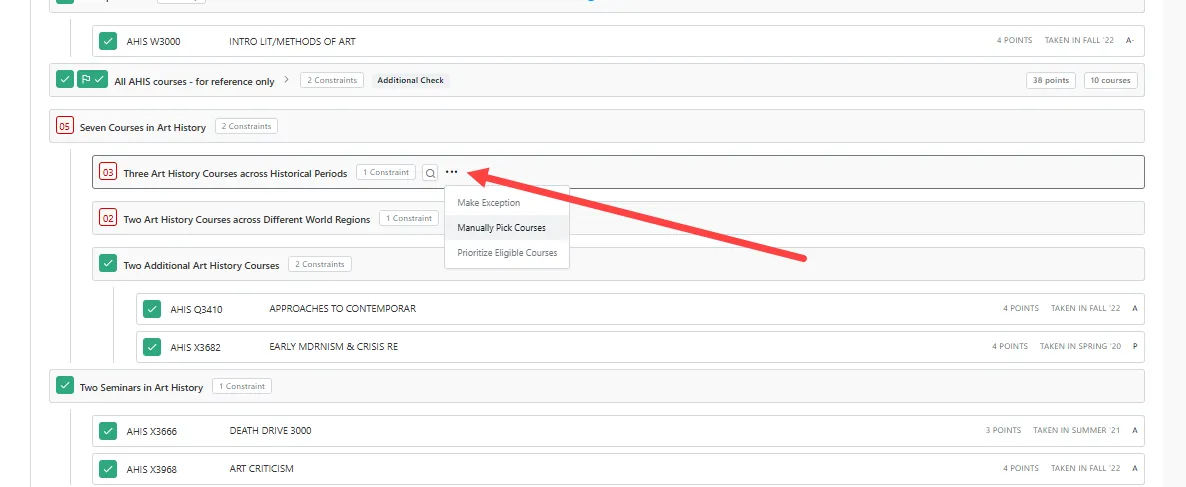
Stellic allows administrators to apply program requirement and sub-requirement exceptions on an as-needed basis. While viewing a student’s degree audit on the “Progress” tab, hovering over a specific program requirement or sub-requirement will reveal an icon of three dots; clicking on these three dots will allow you to select “Make Exception.” Available exceptions include the following. Additional details about each kind of exception are below:
- Waive this Requirement
- Substitution
- Waive or Modify Program Constraint
- Manually Pick Courses
Important Note: Applying incorrect or excessive exceptions may result in a student's record misaligning with their program's graduation requirements. For instance, applying courses of inequivalent values may result in a student not meeting the number of credits required for graduation clearance. As such, you may only apply exceptions that align with approved academic pathways and program equivalencies established by the student's School or program.
Applying Course Exception(s)
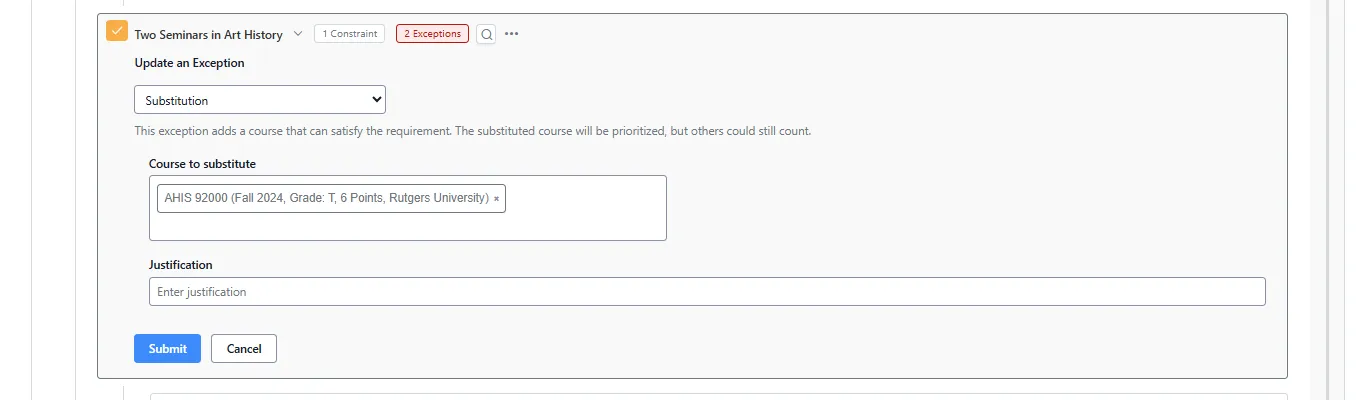
This option allows you to substitute a required course with an alternative. This option is useful in cases where a student has taken a course that meets the requirements or an admin is manually selecting courses that satisfy a requirement.
To Substitute a Course:
- Follow the steps above to 'Make an Exception.'
- Select 'Substitution.'
- Enter the course ID and click on the desired course.
- Provide a 'Justification.'
- Click Submit.
Waivers absolve the student from completing the requirement. These are helpful in cases where a student has an approved reason that permits them not to take the course. Once the requirement is waived, it will receive the green checkmark and the waived marker, indicating that the student has satisfied the requirement. All checklist items will be greyed out and set to optional.
To apply a course Waiver:
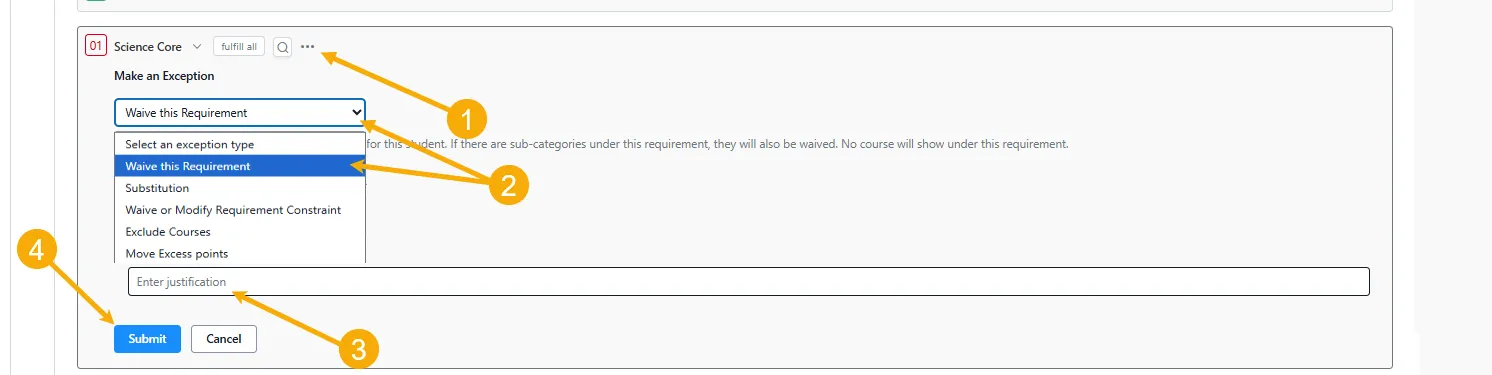
- Follow the steps above to 'Make an Exception.'
- Select 'Waive this Requirement' in the dropdown window.
- Enter a 'Justification.'
- Click 'Submit.'

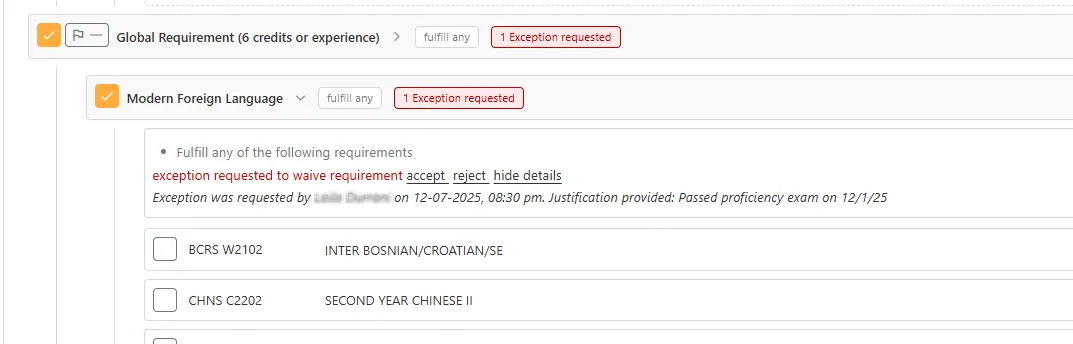
Students can initiate exception requests to be reviewed by your team(s). Once submitted, you will have the option to accept or reject their request. This review process can be completed upon expanding the requirement section with the request.
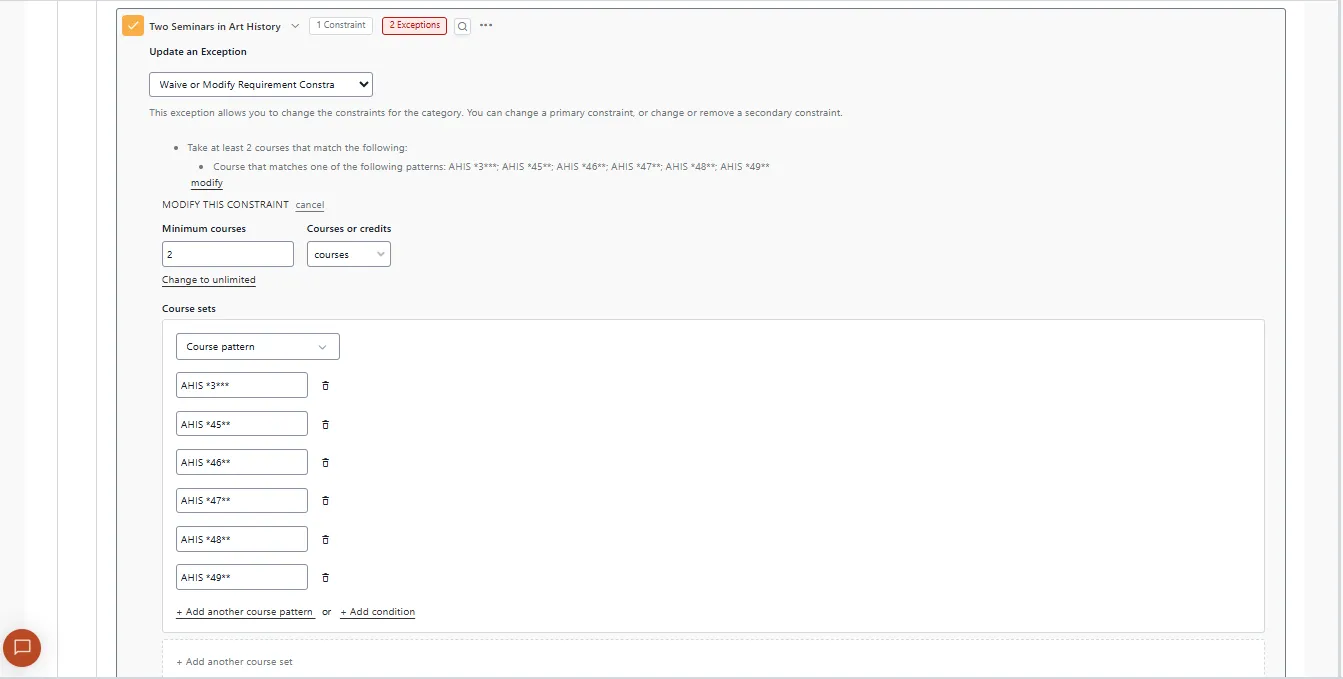
The "Waive or Modify Requirement Constraint" option allows you to change a program constraint locally - that is, adjusting one of the program audit’s rules only for the current student. For example, you could change “Take 2 Electives” to “Take 1 Elective” or modify a list of approved courses.
This is germane for students who are completing program requirements in a non-traditional way, or students who are applying transfer credit towards one or more requirements.
This is also useful in cases where a student has received a 6-credit (or more) block of transfer credit from courses taken at another institution that needs to count on the program audit as the equivalence of multiple courses at Columbia.
Manual Course Selection
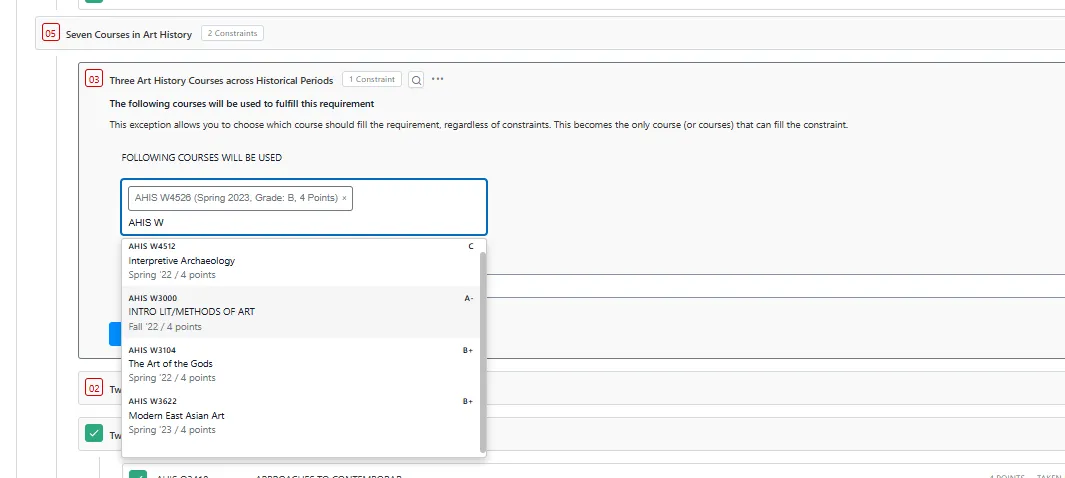
Manual Selections are designated from the list of taken or in-progress courses to satisfy a given program requirement or sub-requirement. Audits are configured to require Manual Selection when a particular requirement or sub-requirement is sufficiently nuanced beyond what a predetermined list of courses can accommodate. It is also built into audits for requirements that need DUS or Faculty approval, such as a cluster of courses organized around a theme, period, genre, or medium (e.g., the Three Art History Courses across Historical Periods requirement in the Art History major).
Manual selection should only be used when you are prepared to select all the courses needed to match the requirement value at once. Once applied, the requirement will be marked as satisfied even if the incorrect number of courses has been selected. For instance, if a requirement calls for three (3) courses, but only two (2) courses are manually selected, then the requirement will be incorrectly set to fulfilled.
To select and apply a Manual Selection:
- Hover over the Requirement.
- Click on the visible three dots.
- Select 'Make Exception.'
- Choose a course(s) from the drop down list.
- Enter your 'Justification.'
- Click 'Submit.'